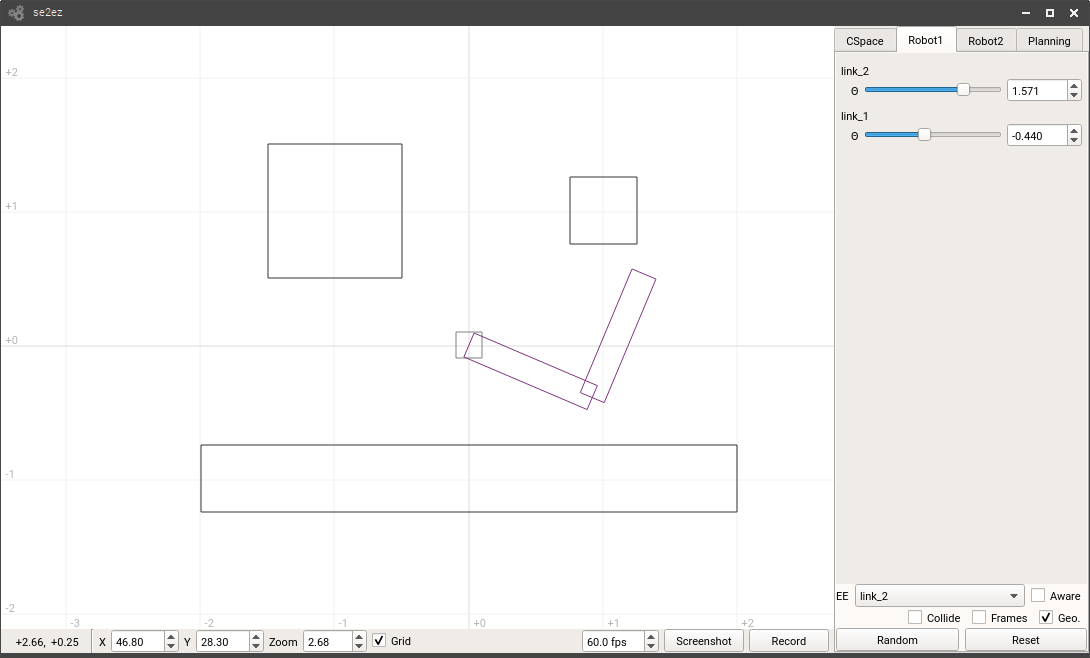
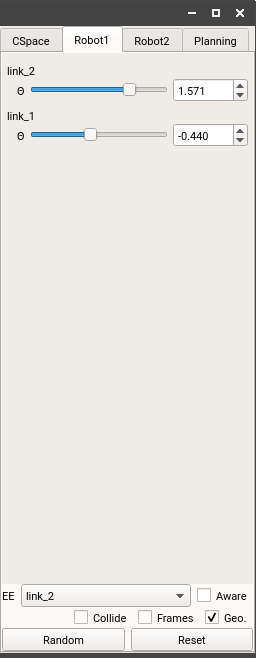
The joint panel provides a way to interact with a robot, changing state values, observing collisions, and in general exploration of what is possible with a robot. A close of the joint panel is given below.
Options
The bulk of the joint panel is taken by sliders and boxes that allow you to manually vary joint values for each joint in the robot. These can be dragged, scrolled, or manually entered to get to a desired joint configuration.
At the bottom of the joint panel, there exist a few options. First, if you right click the robot viewport while the joint panel is active, the panel will try to use inverse kinematics (IK) to place the currently selected robot end-effector at the position of your mouse. The currently selected end-effector is given by the combo box labeled EE. You can use collision-aware IK by selecting the box labeled Aware.
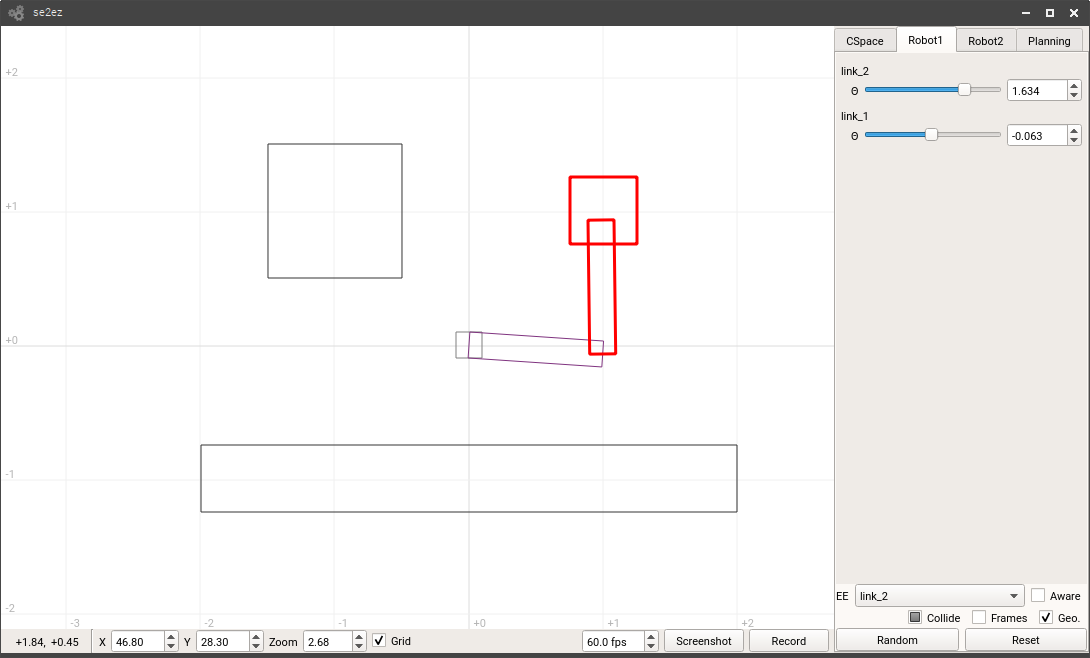
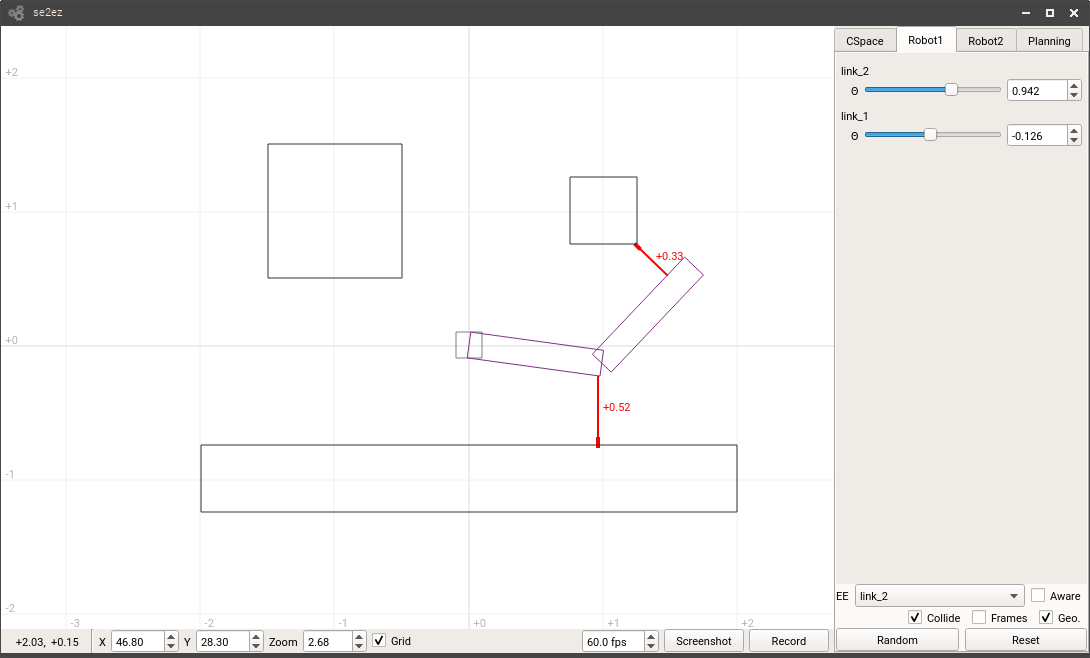
There are a few drawing options available in the next row of check boxes. Collide is a tristate box with the following states: do not draw collisions, highlight collisions in red, and draw collisions and signed distances of all links. Examples of these states are given in the images below.
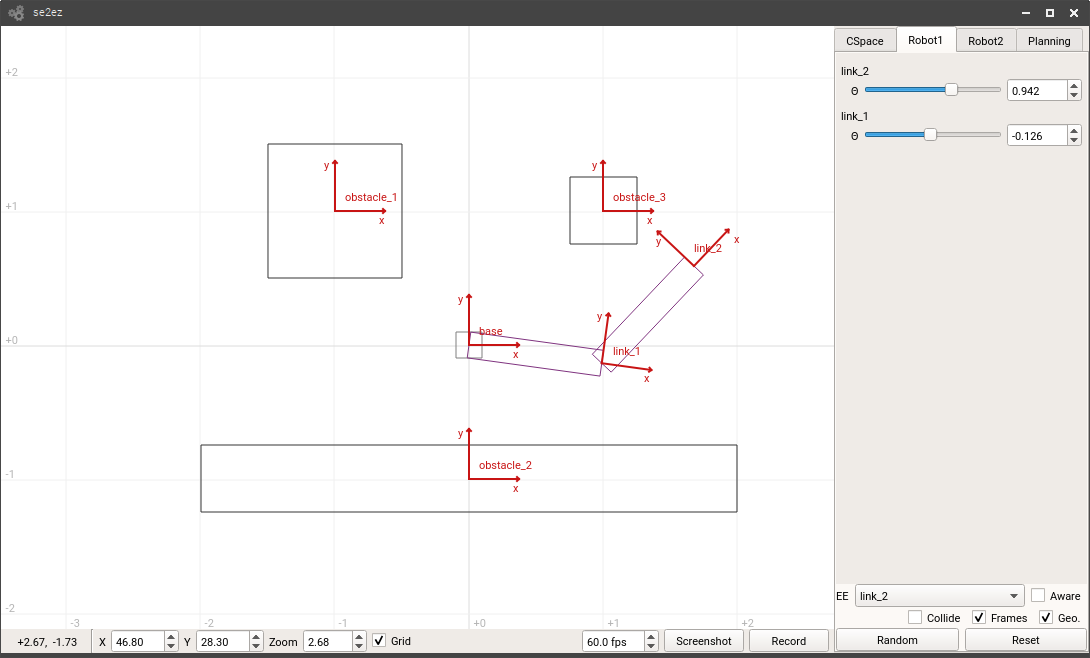
Additionally, the frames of a robot may be drawn by selecting Frames. You can hide robot geometry by unchecking Geo..
Finally, the robot state can be either set to a random state (collision-free if Aware is checked) or reset to default by the Random and Reset button respectively.